
How to Set Up Your Digital Invitation and Collect RSVPs With GUESTPIX
GUESTPIX includes a built-in digital invitation and RSVP feature that lets you invite guests to your event and collect their responses all in one place, directly through your event gallery. It is included with every package and is completely optional. If you choose not to use it, guests are simply taken straight to your gallery welcome screen when they scan or tap your link. This article explains how to set it up, share it, and make the most of it for any event type.
How the digital invitation works
When the digital invitation is enabled, guests who open your gallery link or scan your QR code will see your invitation first before entering the gallery. They can RSVP directly from there and, if you choose, provide additional information such as dietary requirements or song requests. Once they have responded they go straight through to the gallery.
If the digital invitation is turned off at any point, guests are taken directly to the gallery welcome screen as normal.
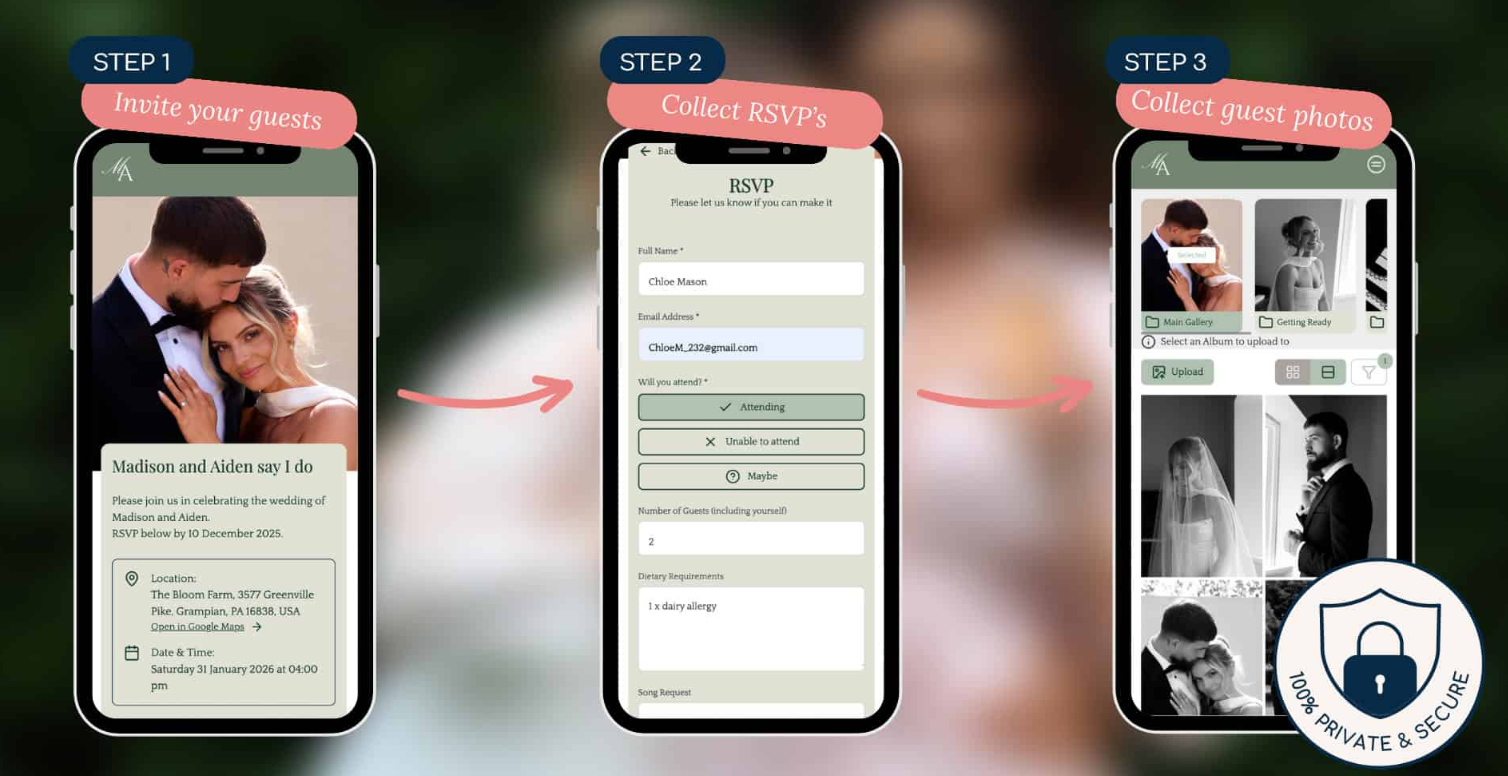
How to set up your digital invitation
- Log in to your host dashboard at my.guestpix.com
- Enable the Invitation within your Event Settings first.
- Navigate to Invitation in the top navigational menu bar and Select "Manage Invitation"
- Customize your invitation with your event details, date, and any message you would like guests to see
- Turn on the RSVP option if you would like guests to respond (optional)
- If RSVP is on, choose which additional fields to include such as dietary requirements or song requests
- Save and your invitation is live
How to share your digital invitation
Your digital invitation is accessed through the same link and QR code as your gallery, so there is nothing extra to set up or share separately. You can share it via:
- Magic link sent through text, email, or messaging apps such as WhatsApp
- QR code added to printed invitations, posters, or signage
By event type:
- Weddings - The digital invitation works beautifully alongside or instead of a traditional paper invitation. Collecting RSVPs, dietary requirements, and song requests all in one place saves significant admin time in the lead-up to the wedding.
- Parties and birthdays - A quick and easy way to get a headcount without chasing people individually. The song request field is popular for birthday celebrations.
- Vacations - Useful for group trips where you want to confirm who is joining and collect any preferences or requirements upfront.
Collecting additional information from guests
When RSVP is enabled you can add optional fields to gather extra information from guests as they respond. Available fields include:
- Dietary requirements
- Song requests
These fields are all optional and can be turned on or off individually depending on what is relevant to your event.
Do GUESTPIX send the invitation to my guests?
No. GUESTPIX does not send invitations directly to your guest list on your behalf. You share the invitation link or QR code yourself through your preferred channels. This keeps you in full control of who receives it and when.
What if I want to turn off the digital invitation after sharing it?
If you turn off the digital invitation at any time, guests who open your link or scan your QR code will be taken directly to your gallery welcome screen instead. No content is lost and the gallery continues to work exactly as normal.
How many digital invitations do I get?
All packages include a digital invitation for each event gallery for example:
- Classic and Signature packages include 1 digital invitation
- Signature Bundle includes 3 digital invitations, one per event gallery
Party Packages:
- Small package include 1 digital invitation
- Medium package includes 1 digital invitations, one per event gallery
- Large package includes 3 digital invitations, one per event gallery
Some customers may be hosting multiple events throughout the year and this is the reason why they will use different invitations for each event.